NomadTime / Support
How can we help?
Get in touch for help, feedback, or privacy requests.
If the contact button isn’t available, you can contact Alia on LinkedIn.
If something went wrong, include your device model, iOS version, the app version from About, and what you were doing. Only include photos or notes you are comfortable sharing by email.
Compare times and ranges
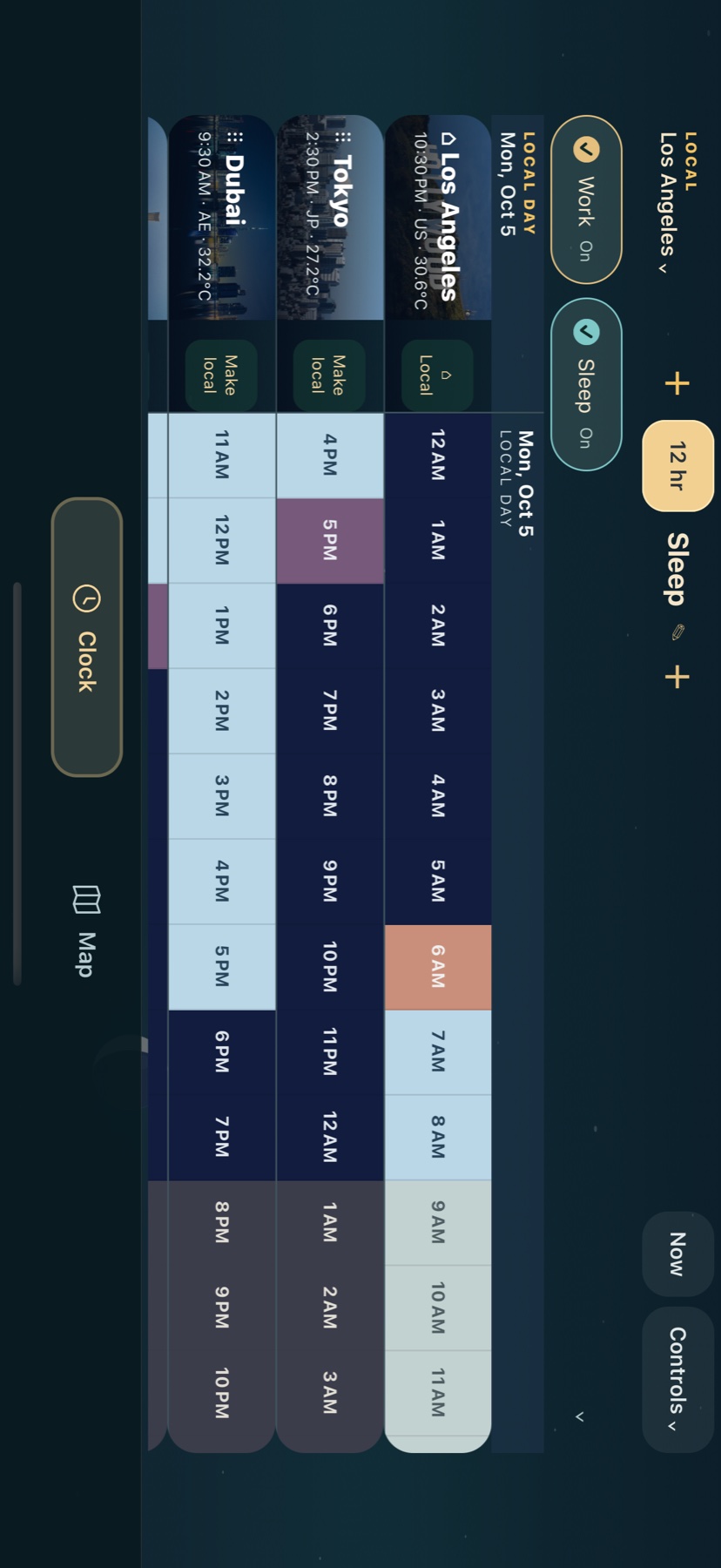
- Use the + beside your local place to add a city or airport clock. You can make any clock your local reference.
- Use the + beside Time to add a time or range. You can also tap the timeline: the first tap starts a range and a second tap ends it.
- For sleep across midnight, enter a start such as 10:30 PM and an end such as 6:00 AM. The range continues into the next day.
- Save and name an activity to keep it. Use its handles or exact-time inputs to adjust it, and its lock to prevent accidental changes.
- Expanded range rows select on a single tap; double-tap or use the pencil to edit. Collapsed named buttons switch each range on and off.
- Hold a clock tile to drag it into a new position. Turn the device sideways for a wider timeline.
Name a clock for a person
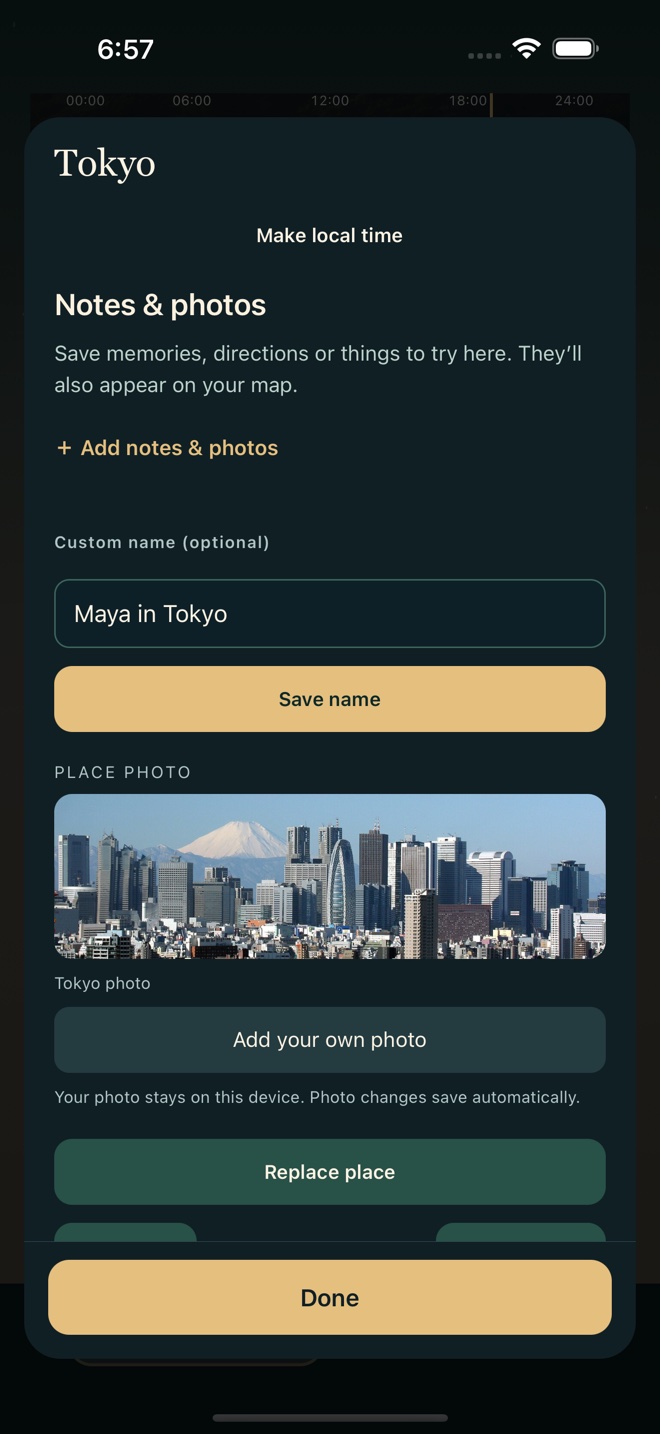
- Add the person’s city with the + beside your local place.
- Tap that clock tile, or use its Edit button.
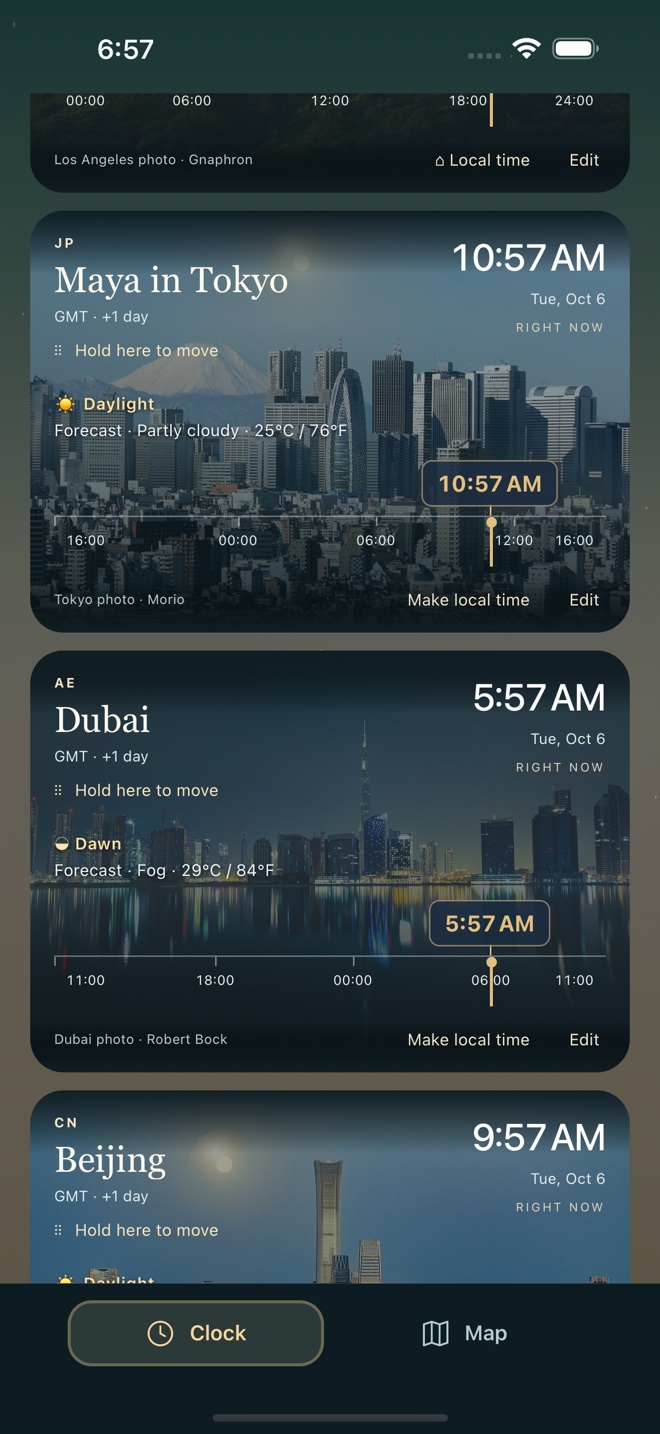
- Enter a Custom name, such as “Maya in Tokyo,” then tap Save name. Only the display name changes; the city’s time zone stays the same.
See the name form and finished clock
Places and memories
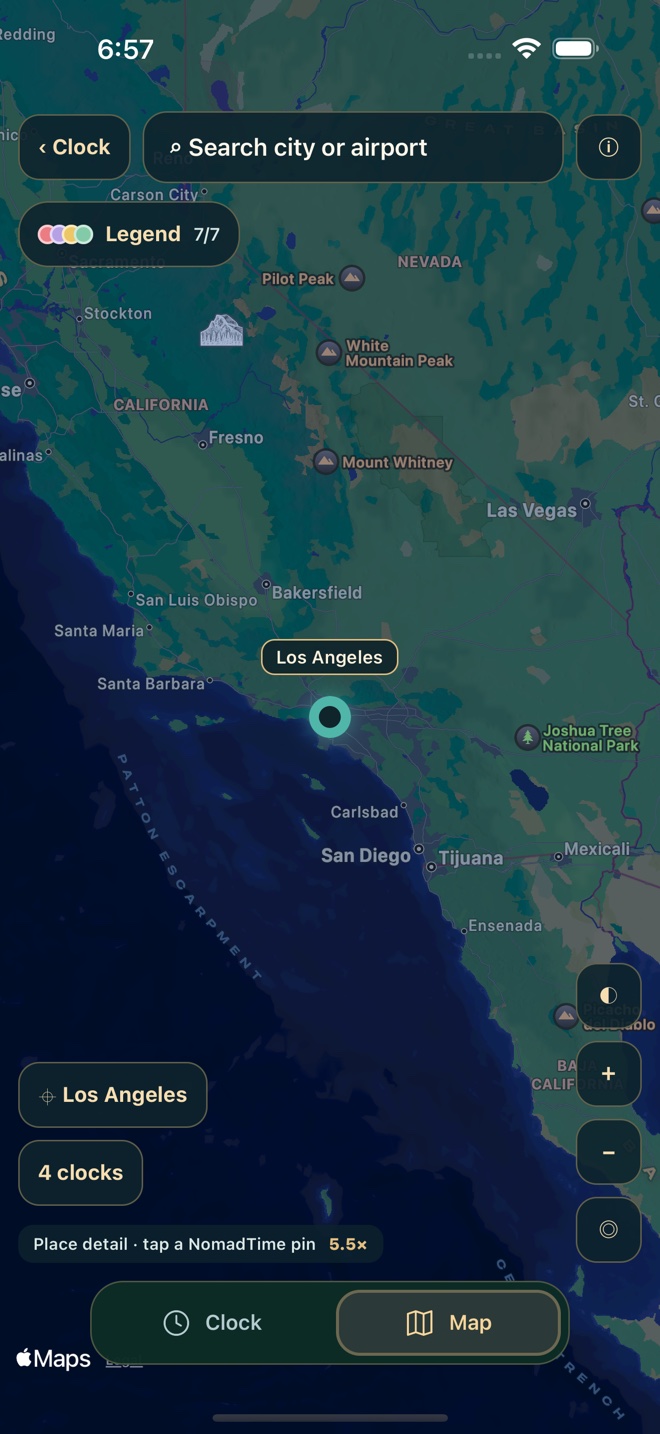
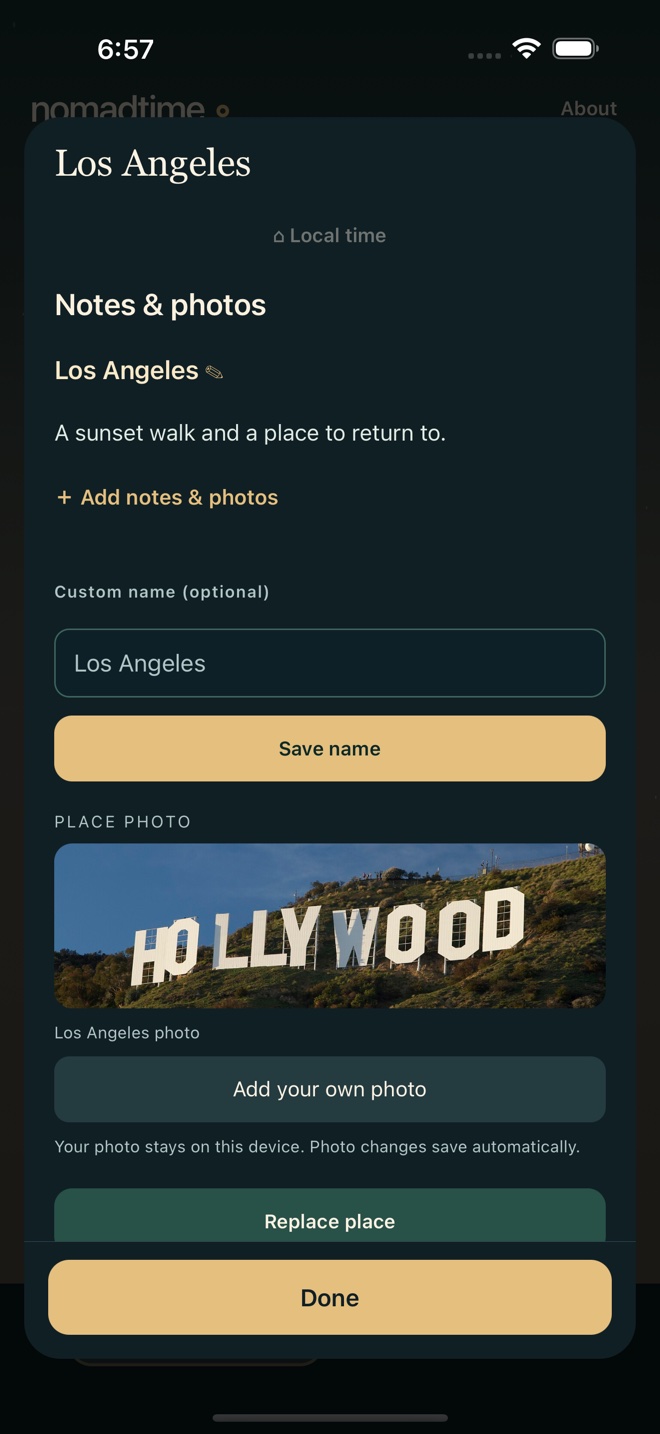
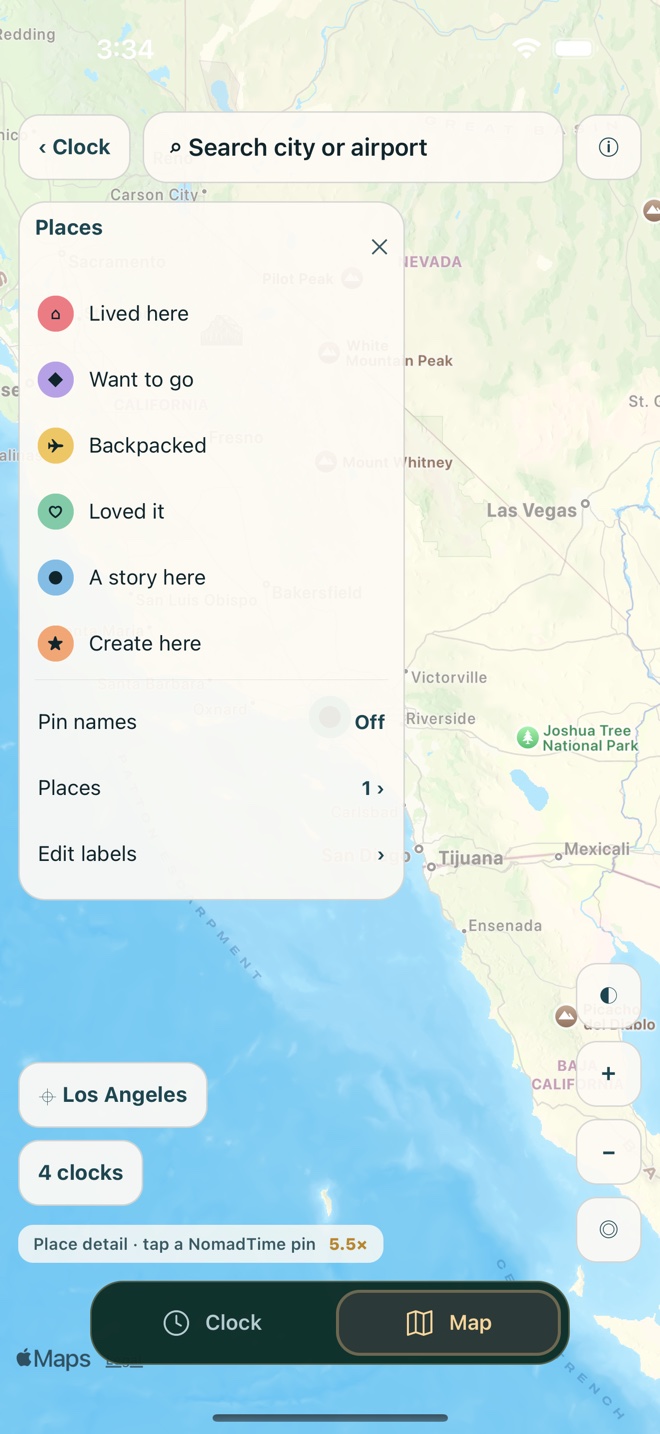
Open Map and tap a location to add a pin. Give it a label, notes, photos, and your own color categories. Turn on its Clock option to add a linked clock. Hiding a pin keeps its memories; deleting a clock does not delete a pin's notes.
See a saved pin, its notes, and the color legend
Permissions and offline use
Location, photo selection, and calendars are optional. You can choose your local city manually. Calendar access reads the calendars you select and never edits their events. Change permissions in iOS Settings.
Clock conversion, the place catalog, bundled images, and saved content work on device. Live maps and weather require a connection. Forecasts can be cached or temporarily unavailable.
Your saved data
There is no NomadTime account or cloud sync. Keep your device backed up. Deleting the app can remove saved places, ranges, notes, and imported photos; reinstalling is not a safe troubleshooting step for preserving them. iOS backups are governed by your Apple settings. You can edit or remove individual records in the app.